Deploy Step 1-2: Tenant And Platform
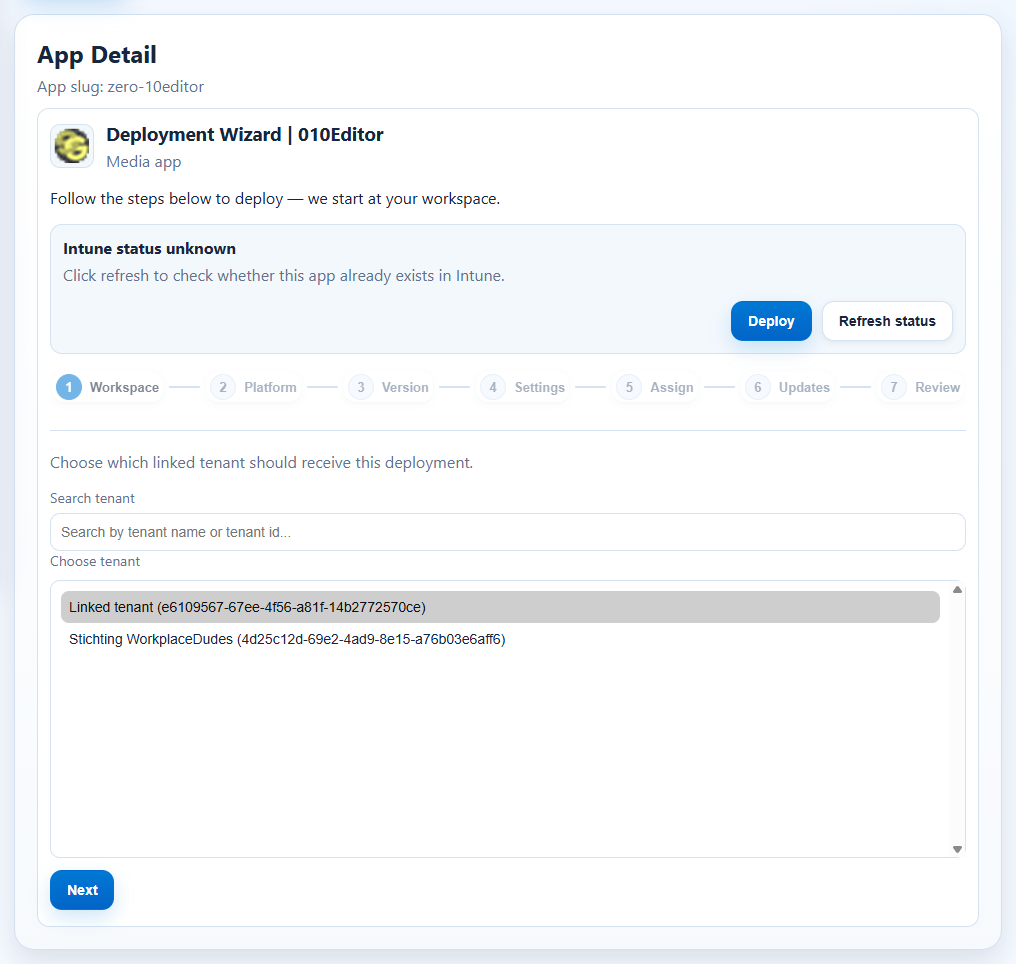
What This Page Covers
This step locks the target tenant and platform before version/group choices.
Prerequisites
- Deploy wizard is open for the selected app.
- Customer context is verified.
Click Path
- Expand 1. Choose Tenant.
- Search and select intended tenant.
- Click Next.
- Expand 2. Choose Platform.
- Select target platform.
- For mobile lanes, use Add App From Store when required.
- Click Next.
Platform Notes

- Windows and macOS are the primary deploy lanes.
- If a lane is unavailable, the selected app likely does not support that platform.
- Do not continue with a guessed platform when status is unclear.
Verification Checklist
- Selected tenant matches intended customer context.
- Platform badge matches deployment goal.
- Wizard advances without tenant/platform validation errors.
Expected Result
- Deploy wizard continues with correct tenant and platform context.
If It Fails
- If tenant list looks wrong, re-check customer workspace.
- If platform flow is unavailable, verify app/platform support.
- If context remains unclear, stop and run tenant troubleshooting.