Deploy Step 5: Group And Assignment
Prerequisites
- Deploy wizard is open and you have completed steps 1–4 (Tenant, Platform, Version, Install Scope).
- You know the target Entra security group name, or you are ready to create a new one.
What Happens In This Step
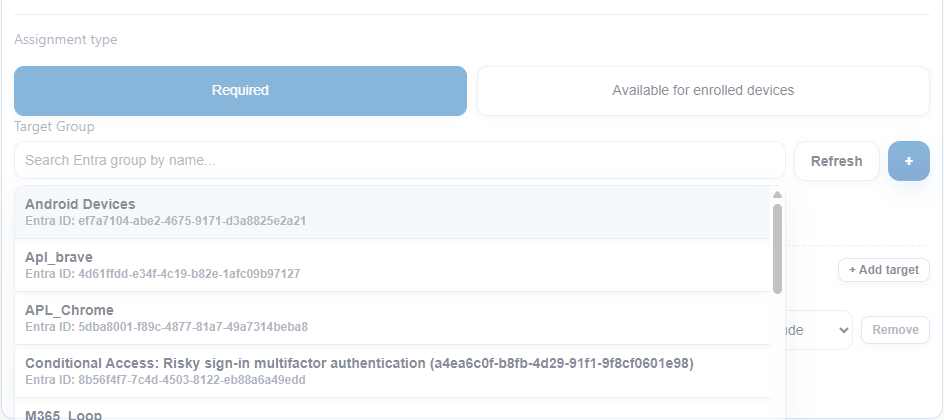
Step 5 determines who gets the deployed app. You select an Entra security group and choose how the app is assigned. This is the most security-sensitive step in the wizard — assigning to the wrong group pushes the app to the wrong devices.
Click Path
- Expand
5. Choose Groupin the deploy wizard. - Select assignment intent:
-
Required: app is force-installed on all devices in the group. -Available for enrolled devices: app appears in Company Portal for users to install voluntarily. - In
Search Entra group by name, type the target group name. - Select the matching suggestion from the dropdown.
- If the group does not exist yet:
- Click
+to open theCreate Security Groupmodal. - Enter a unique group name. - ClickCreate group. - The new group is automatically selected after creation. - If you intentionally want no group assignment, click
Skip assignment. - Confirm the selected group name and assignment type are correct before proceeding.
- Click
Nextto continue to step 6 (Auto-Update Options).
Expected Result
- The correct target group and assignment mode are set.
- You can clearly read back the selected group name before clicking Next.
- Deploy will target exactly the devices/users in the selected group.
Assignment Type Reference
| Type | Effect |
|---|---|
| Required | App is installed automatically on all group devices |
| Available for enrolled devices | App appears in Company Portal, user installs manually |
| Skip assignment | App is deployed without a group (unassigned state in Intune) |
If It Fails
- If the group search returns no results, verify the group name spelling and try a partial search.
- If
Create groupfails, try a different group name (group names must be unique in Entra). - If the group appears but devices are not receiving the app, verify that the correct devices are members of the group in Entra admin center.
- If you are unsure about the target, click
Skip assignmentand assign the group manually in Intune after deployment. - Never guess a group name — stop and verify before deploying.