Auto-Update Management
Purpose
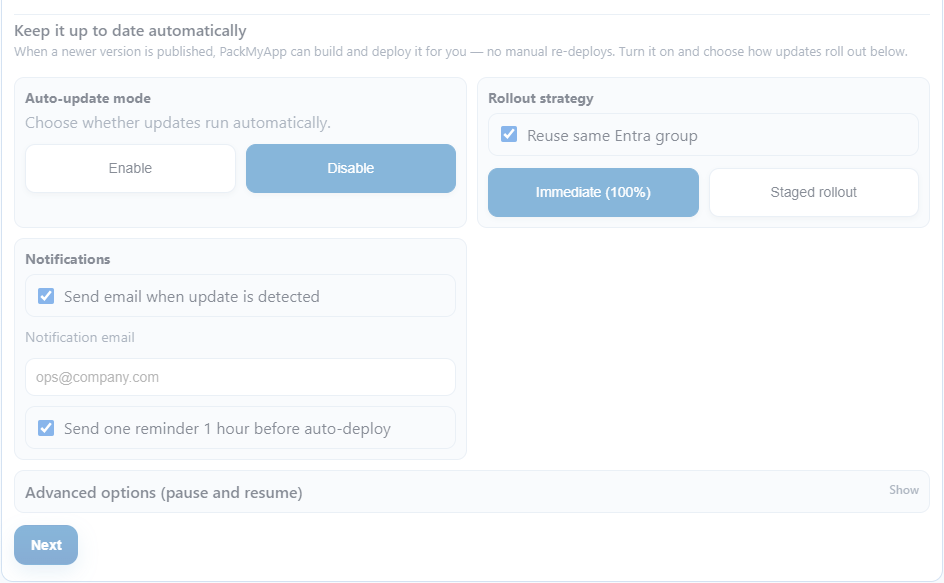
Use Auto-Update Management to configure how PackMyApp detects, pauses, and rolls out newer versions after deployment.
What You Can Control
- Enable or disable auto-updates per deployment.
- Pick a schedule: daily, weekly, or every X hours.
- Reuse the same Entra group when a new version is available.
- Choose immediate rollout or staged rollout.
- Send update-detected emails and pre-deploy reminders.
- Pause auto-updates immediately or until a future UTC timestamp.
- Review saved preferences and recent auto-update execution history for the current deployment context.
Step 6 In The Deploy Wizard
- Open the Deploy Wizard.
- Go to step 6,
Auto-Update Options.

- Keep the top cards for the settings you use most.
- Open advanced options only when you need pause/resume controls.
- Save only after confirming customer, tenant, and target group context.
Staged Rollout Rules
- Staged rollout uses phase percentages such as 10%, 50%, and 100%.
- The final phase must be 100%.
- The UI previews the staged order before deployment.
- PackMyApp rejects incomplete phased lists such as
10%, 50%without a final100%stage.
Pause Behavior
Pause auto-updatesblocks scheduled execution.- If
Paused untilis set, the worker resumes automatically after that time. - If no resume time is set, updates stay paused until manually resumed.
Preference And History Review
- Use the saved auto-update preference view to confirm that schedule, rollout strategy, pause state, and notification flags match the deployment you intended.
- Use update history when you need to confirm which version was targeted, whether rollout succeeded, and whether a staged phase or target group was involved.
- If your tier cannot manage auto-updates, PackMyApp still shows the state but management actions stay capability-gated.
Related Pages
- Deploy Wizard Overview
- Updates Center
- Auto-Update Engine (internal architecture reference)